
A Ledger firmware update should follow a clear order: application environment, device state, backup record, device-screen prompt, and completion review. This article keeps the historical tutorial angle and does not present itself as the latest release notice.
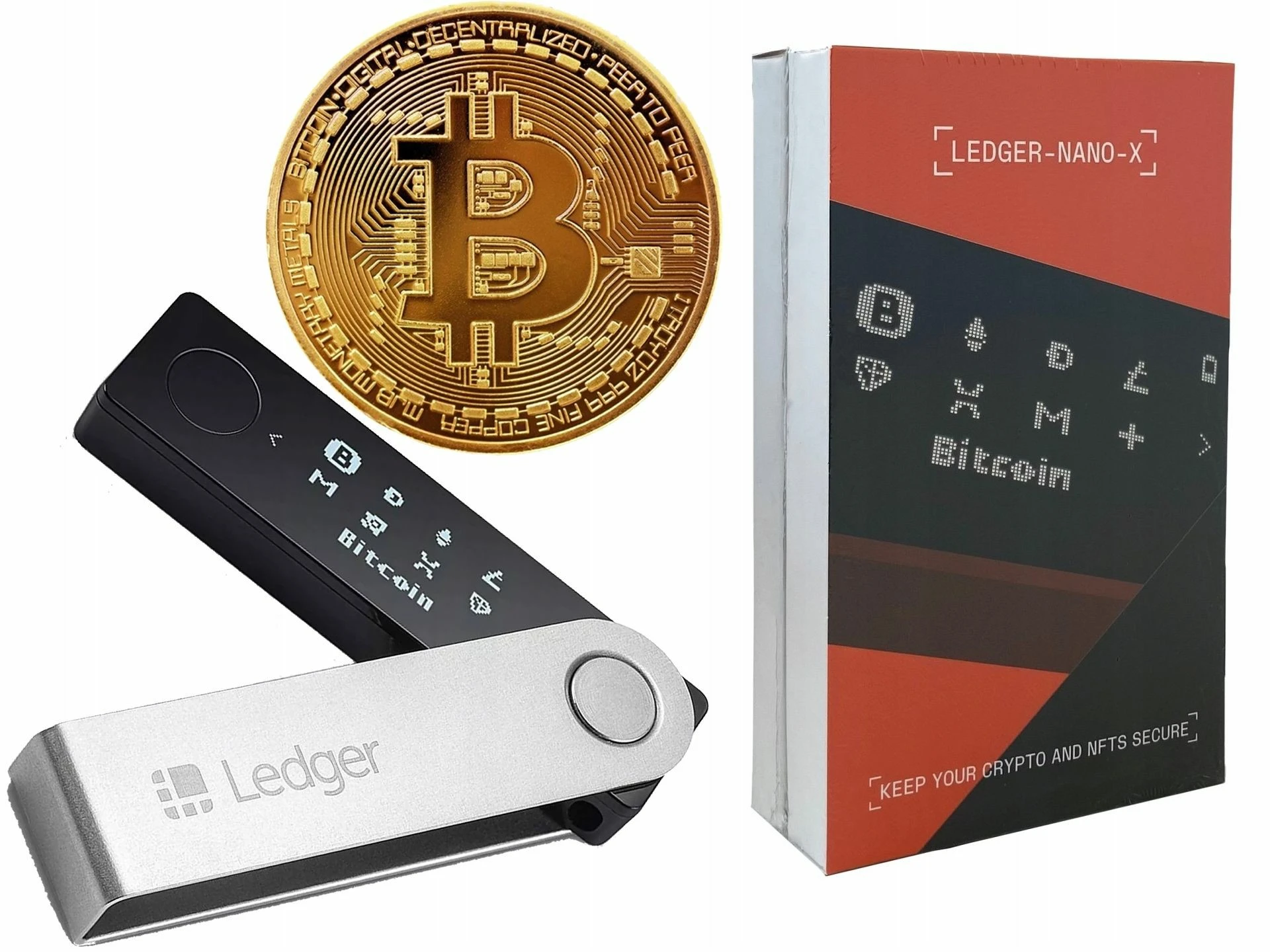
Start with the application environment
Open Ledger Wallet and confirm that the current platform can recognize the device. An application update and a firmware update are different layers. If that distinction is unclear, read app updates versus firmware updates before continuing.
Check device state and backup records
The device should remain steadily connected, and the recovery-phrase record should already be stored offline. The recovery phrase is not something to repeatedly enter during an update; it is recovery material for a separate recovery workflow. For the concept background, see private keys and the recovery phrase.
Read the device screen during the update
Ledger Wallet provides the update path, but the device screen is still the place to review important prompts. Avoid combining the update with unrelated tasks. For the purpose of firmware changes, continue with what a Ledger firmware update is for.
Review after completion
- Confirm that the device restarts and unlocks normally.
- Check whether Ledger Wallet can still recognize the device.
- Open a familiar account view and confirm that the display loads as expected.
- Record the update date, app version, device model, and connection method.
If the application or device screen does not match the expected step, pause and check the official support flow instead of repeating uncertain prompts.